
My settings
You can enable or disable various settings on your Embodia account according to your preference. These can be found by clicking on the Settings tab in the top nav bar, and then on My settings under the My account section.
In My settings, you will see the following categories, which are outlined below in greater detail.
Multi-practitioner clinics: Any changes you make under My account, including My settings, will only apply to your personal Embodia account.
Academy
You can choose:
- Which license to display on your certificates
- learn more about displaying the license on your certificate in the help article, Adding my license/registration number to course certificates on Embodia.
- Your preferred CEU jurisdiction
- You can and about preferred CEU jurisdiction in the help article, Add CEUs to my course certificates.

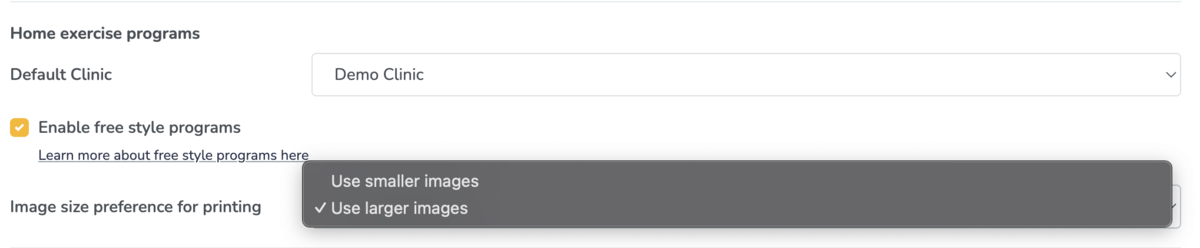
Home exercise programs
You have the option to:
Choose your default clinic,
- If there is a clinic you will be prescribing from most often. You can learn more about choosing your default clinic in the help article, Scoping to a clinic.
- Enable or disable free style programs
- Selecting this will add the option for you when you are prescribing programs. Freestyle programs allow for more flexibility. Learn more about free style programs.
- Select your image size preference when printing exercises.
Messaging
Choose if you would like to
- Enable two-way messaging with your patients
- This feature is not turned on by default so you only receive messages when you're ready to.
- Allow patients to attach notes when completing an exercise

Learn more about enabling messaging with your patients and attaching notes when completing an exercise in the help article, Enabling two-way messaging and patient notes on exercise programs.
Nerdiness
You can enable:
- Interesting facts
- If you are feeling especially nerdy, you can choose to have Embodia to show you a new piece of trivia every time you log into your account.
- Quick actions
- You can think of Quick actions like a navigation shortcut throughout the Embodia platform. Learn more about quick actions.

Notifications
You can choose to:
- Be notified of new messages sent via two-way messaging from your patients
- The two-way messaging feature itself can be turned on via the Messaging section above.
- The two-way messaging feature itself can be turned on via the Messaging section above.
- Be notified of patients' home exercise programs expiring in 2 days
- This will also show up on your Dashboard if you've chosen to include the Programs expiring soon section there. Learn more about customizing your dashboard.
- This will also show up on your Dashboard if you've chosen to include the Programs expiring soon section there. Learn more about customizing your dashboard.
- Be notified if your patients add new notes to any exercises in their home exercise program(s)
- If you want to know when your patient needs assistance or modification, you can turn this feature on to get real-time notifications of how things are going.
- If you want to know when your patient needs assistance or modification, you can turn this feature on to get real-time notifications of how things are going.
- Be notified when your patients add new entries to their progress diaries
- This makes it easy to keep tabs on patient diary entries in real time so you can catch any misunderstandings or forgetfulness early.
- This makes it easy to keep tabs on patient diary entries in real time so you can catch any misunderstandings or forgetfulness early.
- Receive weekly summaries of your progress on your active courses
- Select this if you are taking any courses on Embodia Academy and would like the accountability and satisfaction of seeing a weekly progress summary.

Learn more about all these notifications in the help article, Notification settings on my practitioner account.
Questionnaires
You can choose to include unselected answers to single answer/multiple answer questions in a patient's questionnaire response summary. If you only wish to view answers selected by the patient, leave this option unchecked.

Viewing a patient's questionnaire response summary is easy. Simply navigate to a patient's profile, go to Progress > Questionnaires, and then select the hyperlinked name of the completed questionnaire you wish to view. You will then see the summary, its graph, its questions and the patient's answers, and previously answered instances of that same questionnaire.
Privacy and security
You can choose:
- Whether to show the patient's name in the browser tab
- Suppose you like to open multiple patient profiles simultaneously in multiple browser tabs. In that case, it might be a bit challenging to know which tab corresponds to which patient profile without having to switch to said tab. Embodia enables you to add the patient's name to the tab to make this easier.
- Suppose you like to open multiple patient profiles simultaneously in multiple browser tabs. In that case, it might be a bit challenging to know which tab corresponds to which patient profile without having to switch to said tab. Embodia enables you to add the patient's name to the tab to make this easier.
- Whether to include patient names in booking email notifications
- If selected, the patient's name will display in the subject of email notifications sent to you when patients book or cancel a consult with you.
- If selected, the patient's name will display in the subject of email notifications sent to you when patients book or cancel a consult with you.
- How long you would like your timeout delay to be
- By default, your session on Embodia times out after 60 minutes of inactivity. You can change the timeout delay by entering the desired time (in minutes) in the Timeout delay box.

Reminder: After making changes to any desired settings, scroll to the bottom of the page and click on Update my settings to save your preferred settings.
